
This guide will help you set up your account and prepare to report through the Healthmonix Prism™ platform. Follow the steps below to create your account and buy licenses.
Create your username and password
*1. Go to https://prism.healthmonix.com.
* See the list below if you access Prism through one of our partners:
2. Select Create an account.
If you purchase licenses under the wrong partner or platform, contact our Sales team at sales@healthmonix.com or 610-550-8697 so they can make the change to the correct partner.
3. Complete the required fields and select Create Account.
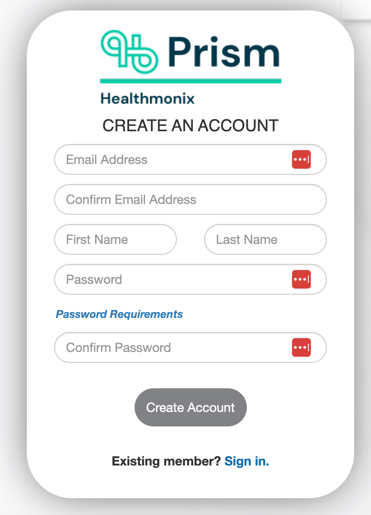
Password requirements
- Must be at least 12 characters long
- Must have at least 1 lowercase letter, 1 uppercase letter, 1 number, and 2 special characters ('!', '@', '#',)
- Can't have 2 or more identical consecutive characters (e.g. "22")
- Can't have 4 or more consecutive characters that match the entered email address (e.g."mail" and "mail")
- Can't be the same as any of the user's previous 24 passwords
Buy your licenses
You need to buy a license for each of your providers.
If you're unsure which license you need or require additional features such as patient deduplication, contact our Sales team at sales@healthmonix.com or call 610-550-8697.
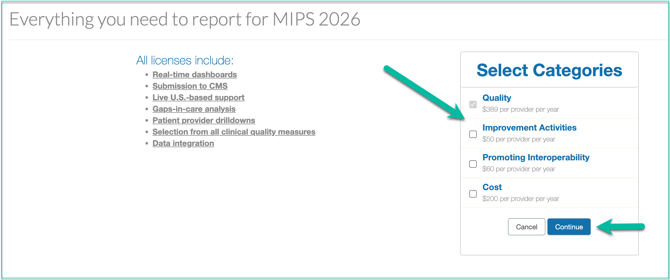
1. Select the year for which you want to buy licenses.
2. Select the checkboxes for which categories you want to buy. Quality is preselected.
3. Select Continue.
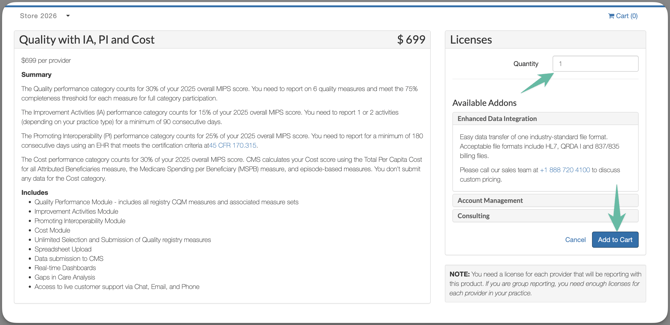
4. Enter the license quantity you want to buy.
5. Select Add to Cart.
6. Select Checkout.
7. Enter the billing address. Select Continue to Payment.
8. Select the payment type. If paying by credit card, fill out the fields for the card you're using.
9. Select the checkbox for reading and agreeing to the EULA.
10. Select whether you want your purchase to auto-renew on the current date next year. The default is yes/checked.
11. Select Process Payment.
12. Select 2026 Admin. This will take you to the Organization View page.
Your next step is to create an Organization and assign licenses.
This article was updated April 8, 2026.